A good HMI training course teaches you three things: how an operator screen talks to a PLC through tags, how to design screens an operator can read at a glance, and how to test and troubleshoot the whole thing on real hardware or simulation. Pick a course built around the software you will actually use on the job, with hands-on exercises rather than slides. The rest of this guide shows what each of those parts looks like, so you can judge any course, ours included.
TL;DR
- An HMI is a graphical window into the PLC’s memory. Training should start with tags and PLC-to-HMI communication, then move to screen design, alarms and trends.
- Good design means a screen hierarchy, restrained color, logical navigation and meaningful alarms. ISA-101 is the benchmark to hold a course against.
- Testing and troubleshooting are part of the skill. Look for courses that make you commission a screen and find faults, not just draw one.
- Match the course to your platform. For Allen-Bradley shops, that means FactoryTalk View and Studio 5000 examples.
- Beginners can start with PLC basics and HMI together. Experienced techs often get more from coaching on a specific project.
Table of Contents
- What an HMI training course should cover
- How an HMI works with a PLC
- HMI design: what a screen design course should teach
- A practical tutorial flow: tags, navigation, alarms and trends
- Commissioning and testing: the part many courses skip
- Troubleshooting HMI problems
- How to choose an HMI training course
- Our perspective
- Learning with Online PLC Support
- FAQ
- Sources
What an HMI training course should cover
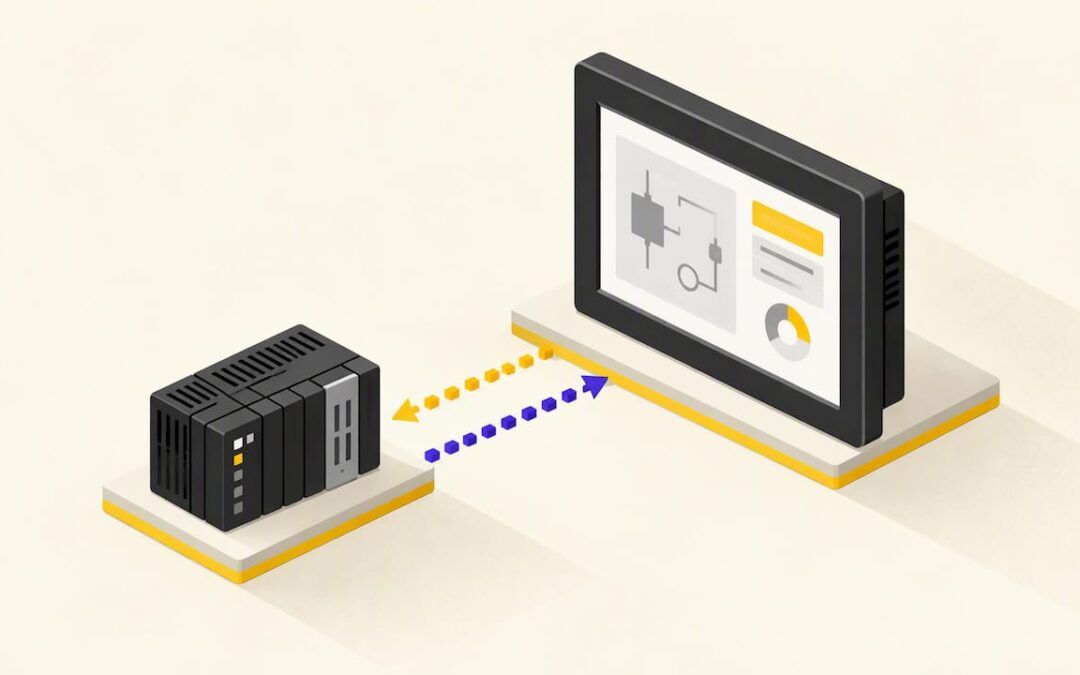
An HMI (human-machine interface) is a virtual window into the PLC: it lets an operator read and write variables stored in the controller’s memory in a graphical form that is easy to interpret. Everything else in a course builds on that idea.
A complete curriculum usually runs through these blocks:
- How HMIs and PLCs fit together. What the controller does, what the screen does, and where the logic should live (in the PLC, not the screen).
- Tags and communication. HMI software is commonly tag-based: graphic objects such as pushbuttons and indicators are linked to bits or words in the PLC through a tag database. You should leave a course able to set up a communication path, browse PLC tags and link them to objects.
- Screen building. Buttons, numeric displays, indicators, animation tied to tag values, and reusable objects.
- Navigation and structure. How operators move from an overview to detail screens, and how you keep that consistent across a machine.
- Alarms, trends and security. Alarm triggers and messages, historical and real-time trends, and user access levels.
- Commissioning and troubleshooting. Testing, diagnosing a lost connection, and fixing a screen that shows the wrong value.
If a course page lists only software menus (“create a button, create a display”) and says nothing about design or testing, you are buying a tool tour, not a skill.
How an HMI works with a PLC
The PLC runs the control program: it reads inputs, executes logic and drives outputs. The HMI never replaces that logic. It reads values from controller memory and writes commands back to it.
Take a motor start. The operator presses a Start button on the screen. The button is linked to a tag in the PLC. The PLC logic sees that bit change, checks its permissives and interlocks, and starts the motor if everything allows it. A green run indicator on the screen is linked to a different tag that reflects the real motor status coming from the PLC.
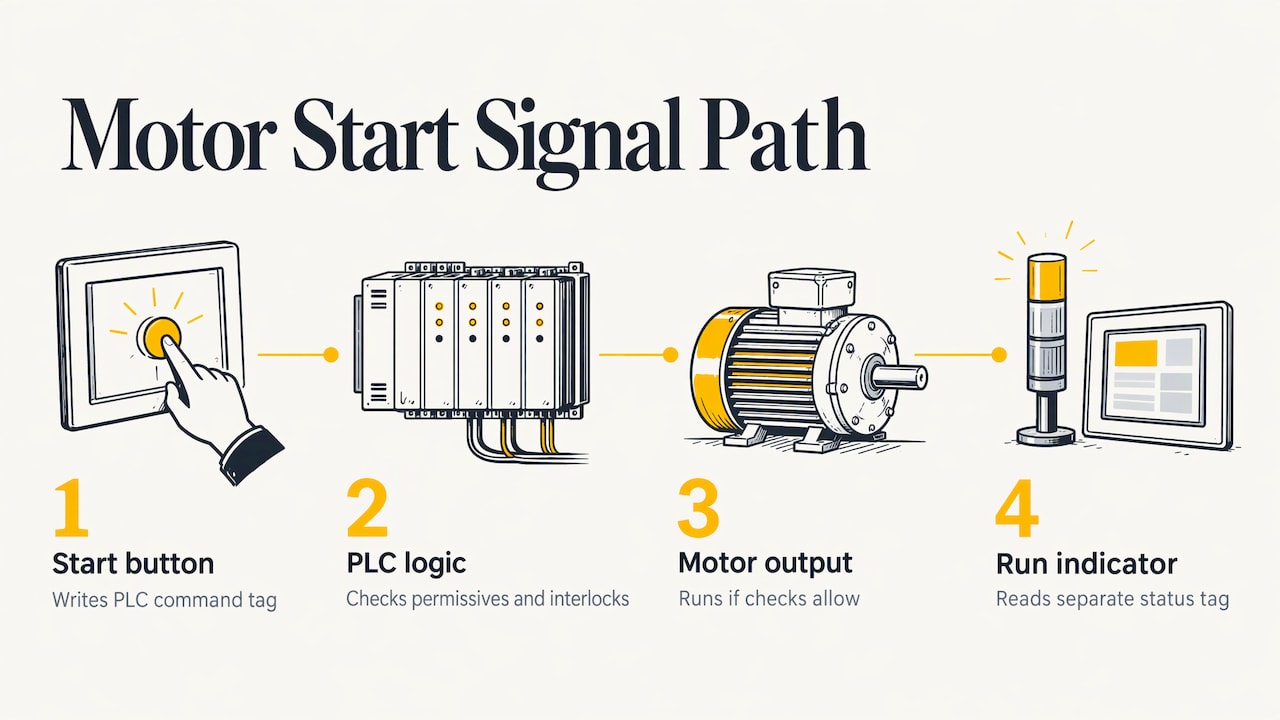
That last point matters. An indicator should show what the machine is doing, not what the button was told to do. Courses that teach this distinction early save you from the classic mistake of a screen that says “running” while the motor is stopped.
In Allen-Bradley systems, the screen software (FactoryTalk View ME for panels, SE for supervisory systems) reads tags from a Logix controller programmed in Studio 5000, or from older platforms such as RSLogix 500 and SLC/MicroLogix processors. That is why we teach HMI work alongside PLC programming rather than as a separate island. If you are still new to the controller side, our Allen-Bradley PLC controls for beginners page is the place to start.
HMI design: what a screen design course should teach
Building a screen is easy. Building one that an operator can use at 3 a.m. during an upset is the actual craft. A serious HMI design course or tutorial should teach the following.
Screen hierarchy and navigation
The ISA’s guidance on high performance HMIs recommends a display hierarchy with progressive exposure of detail, instead of a flat collection of schematic screens. The operator starts at an overview of the whole process, then drills into an area, a unit and finally a device. Navigation should be logical and consistent, so the same button is always in the same place.
For a small machine with a 7-inch panel, this may only be three levels: a main overview, a few functional screens (manual controls, setup, alarms) and a diagnostics screen. The principle is the same at any size.
Color, contrast and animation
The same ISA overview recommends restrained and consistent color, gray backgrounds, low-contrast two-dimensional graphics and little or no animation except where it carries meaning, such as alarm behavior. It also says that color should not be the only way to flag an important condition because some people have color-vision deficiencies, and that alarm colors should be reserved for alarm-related conditions, with bright saturated color drawing attention to abnormal states rather than normal ones.
In practice that means a pump that is running normally is not a loud green box. It is a quiet gray symbol, and the thing that jumps out is the one pump that is faulted. Add a shape, a text label or a symbol to every status so it never depends on color alone.
Context, trends and validation
The same guidance calls for embedded trends, contextual information and validation and security measures. Put a small trend next to the number it explains. Show the setpoint and limits beside a measured value so the operator can judge it without remembering what normal is. Validate operator entries (a minimum and maximum on every numeric input) and restrict who can change critical parameters.
Human factors
Good design also draws on how people perceive and process information. University courses on cognitive ergonomics cover visual acuity, contrast sensitivity, mental models and mental workload in interface design. You do not need a degree in it, but a good HMI course should at least explain why crowded screens and unnecessary animation slow operators down.
A practical tutorial flow: tags, navigation, alarms and trends
Whether you learn from a video series, a live class or coaching, a hands-on HMI project should follow roughly this order. The steps below use FactoryTalk View terminology, but the logic carries to other platforms.
- Build the PLC side first. Create clearly named tags in the controller: commands, statuses, setpoints, alarm bits. Group them in structures or arrays so the HMI side stays tidy.
- Set up communication. Define the path from the HMI to the controller and confirm you can browse its tags.
- Create a navigation template. Make a header or footer with the same navigation buttons, title and alarm banner on every screen, so you build it once.
- Build the overview screen. Show the state of the machine or process in a few seconds of looking.
- Add detail screens and reusable objects. A pump, valve or motor object that you build once and reuse keeps every device looking and behaving the same.
- Configure alarms. The pattern is simple: a BOOL tag goes true in the PLC logic, the HMI’s alarm setup watches that tag with a trigger, and a message tells the operator what happened. For many alarms, bits packed into DINT arrays keep the tag count manageable.
- Add trends. Trend the values operators use to make decisions, such as temperature, pressure or motor current, with sensible time spans.
- Add security. Operators, maintenance and engineers get different rights.
The trap in step 6 is alarm flooding. Every alarm should require an operator action. If it does not, it belongs in a status message or a log, not on the alarm list.
Commissioning and testing: the part many courses skip
A screen that looks right in the editor can still fail on the machine. Commissioning guidance for machines with PLCs and HMIs recommends that you check each HMI screen component, verify functions such as motor start in the PLC program or data table, and test sequencing and interlocks manually before running automatically. That includes safety, sensor-failure, output-failure and sequencing-failure cases.
A useful checklist for your own practice projects:
- Press every button and confirm the right tag changes in the PLC, and nothing else.
- Force each input and confirm the indicator on the screen follows it.
- Type values above and below the limits into every numeric entry and confirm they are rejected.
- Simulate a failed sensor and confirm the screen shows a clear fault, not a frozen number.
- Trip each alarm, acknowledge it and reset it.
A course that has you do this on a trainer or simulation, and makes you fix what you find, teaches more than ten hours of watching someone else click.
Troubleshooting HMI problems
Troubleshooting is where maintenance professionals earn their pay, and it is a learnable routine.
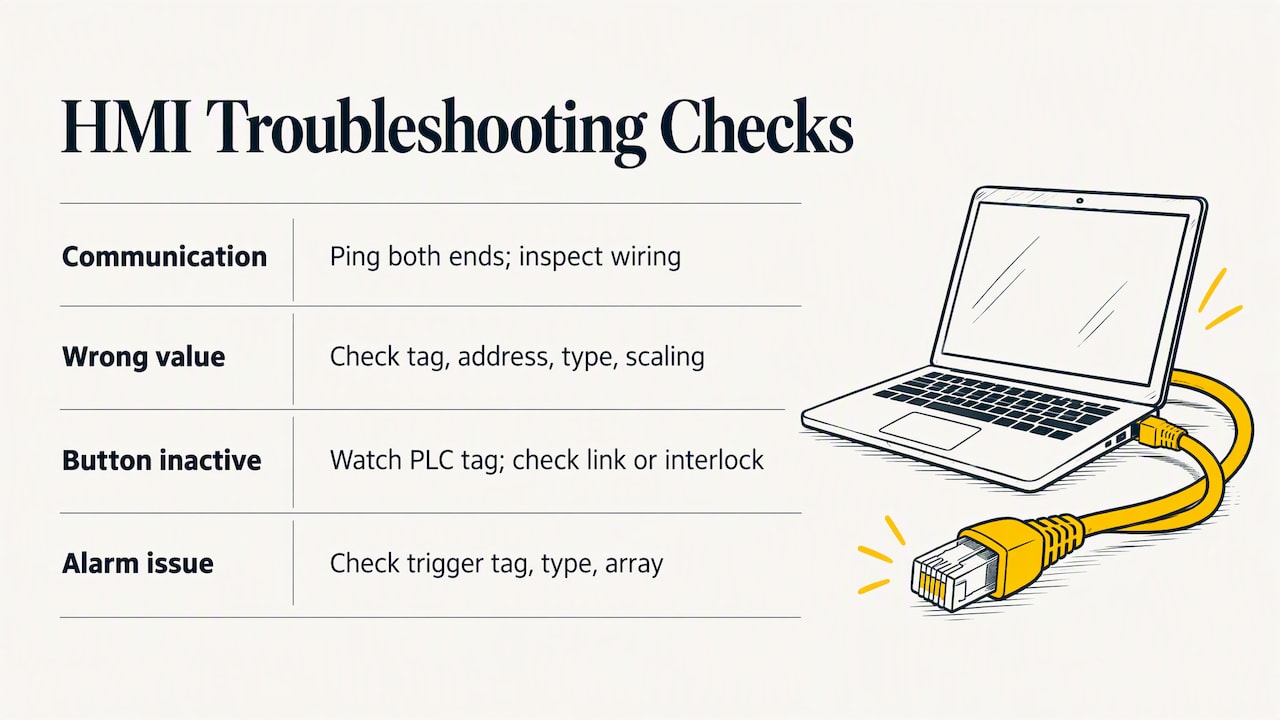
Lost or intermittent communication. For Ethernet-based links, a first step is to ping the devices from both ends. Intermittent replies often point to a loose connection, and a poorly crimped RJ45 may need to be redone. Continuity checks on each pin help find a bad wire. If wiring and terminals are sound, look at software and network settings, and a packet capture tool can show whether data is getting through.
Screen shows the wrong value. Check the tag the object is linked to, then the PLC address or array index behind it. Mismatched data types and scaling are common causes.
Button does nothing. Watch the PLC tag online. If the bit never changes, the problem is on the HMI side (permissions, link, communication). If it changes but nothing happens, the PLC logic is blocking it with an interlock or mode condition.
Alarm never appears or never clears. Confirm the trigger tag, the trigger type (state versus value or bit) and the array element.
The habit to build: always decide first whether the fault is in the screen, the network or the controller, and prove it by looking at the tag in the PLC.
How to choose an HMI training course
Use these criteria when comparing options, whether they are online courses, instructor-led classes, vendor training or one-to-one coaching.
| Criterion | What to look for |
|---|---|
| Platform | The software you will touch at work: FactoryTalk View, Studio 5000, another vendor’s tools. Skills transfer, but the buttons do not. |
| Design content | Screen hierarchy, color, alarm philosophy, navigation, not just object properties. |
| Standards awareness | Reference to ISA-101 or similar practice. |
| Hands-on work | Exercises you build and test, with a project you can keep. |
| Level | A clear starting point and path, from beginner to advanced. |
| Support | A way to ask questions when your project breaks. |
| Cost | Published pricing and access that does not expire before you finish. |
The standards point deserves a note. ISA-101 covers the HMI lifecycle: design, implementation, operation and continuous improvement, with human-centered design, effective display structures, intuitive interaction and operator training, and it applies across continuous, batch and discrete industries. You do not need to buy the standard to benefit. Ask whether a course teaches in that spirit.
Matching the course to your situation
- Student or career changer: start with PLC fundamentals and a simple HMI project. You will understand screens far better once you have written ladder logic they control.
- Maintenance technician: prioritize communication, tags, alarms and troubleshooting on the platform in your plant.
- Controls engineer: focus on design standards, reusable objects, alarm management and structured tags.
- Company training a team: look for consistent content you can assign to everyone, plus a way to get questions answered on your actual equipment.
Our perspective
We built Online PLC Support around a simple observation: most people struggle with automation not because the material is impossible, but because the training is either too generic or too expensive to be practical. HMI work is a good example. People learn where to click, and then freeze the first time a screen shows the wrong value on a real machine.
That is why our training is designed around real-life examples and hands-on strategies, using industry-standard software such as RSLogix 500, RSLogix 5000, Studio 5000 and FactoryTalk View Studio. We teach the PLC and the screen as one system, because that is how you will meet them on the plant floor.
We keep our content structured for all skill levels and keep improving it as methods and software change. Our goal is that you finish a lesson able to do something you could not do before, and confident enough to do it on your own equipment.
the author
Learning with Online PLC Support
If your plant runs Allen-Bradley, our Allen-Bradley HMI programming with FactoryTalk View SE page is the closest match to what this article describes. Our course catalog also includes a FactoryTalk View ME training for panel-based machines, alongside Allen-Bradley PLC training, servo and drive courses. You can browse everything on the PLC training online page.
Prefer to work on your own project? Our 90-minute PLC coaching session is $97 per session, and online PLC coaching starts from $67 per session. Bring a screen that misbehaves, a design you want reviewed or a PLC program you cannot get to talk to your panel. If you want ongoing access, the yearly PLC training membership is $192 per year, and our PLC programming services are available when you need a project built with you. You can also read what students say on our testimonials page.
FAQ
How long does it take to learn HMI programming?
If you already understand PLC tags and basic logic, you can build a working multi-screen HMI in a few weeks of regular practice. Doing it well, with sound navigation, alarms and testing habits, takes longer and comes from working on real projects. Beginners should plan for PLC fundamentals first.
Do I need to know PLC programming before an HMI course?
It helps a great deal. An HMI reads and writes PLC memory, so you need to understand what a tag, a bit and an address are. Many learners take PLC and HMI training together so the two ideas reinforce each other.
Is an HMI design course different from learning the HMI software?
Yes. Software training teaches how to create objects and links. Design training teaches what to put on the screen and why: hierarchy, restrained color, meaningful alarms and consistent navigation. You need both, and the better courses blend them in one project.
Which HMI software should I learn?
Learn the one used where you work or want to work. In many North American plants that is FactoryTalk View with Allen-Bradley controllers. The concepts of tags, screens, alarms and trends carry over to other platforms, so the first one you learn well is never wasted.
Sources
- Human-Machine Interfaces (HMIs), Basics of Programmable Logic Controllers
- The High Performance HMI Overview, ISA
- ISA-101 Series of Standards
- Cognitive Ergonomics in Hybrid Physical-Digital Interfaces, course proposal, IIT Kanpur
- Step-by-step commissioning for machines with PLCs and HMI, Control Design
- HMI Troubleshooting and Maintenance, control.com